Rich Text#
The Rich Text application in CryptPad is an integration of CKEditor.
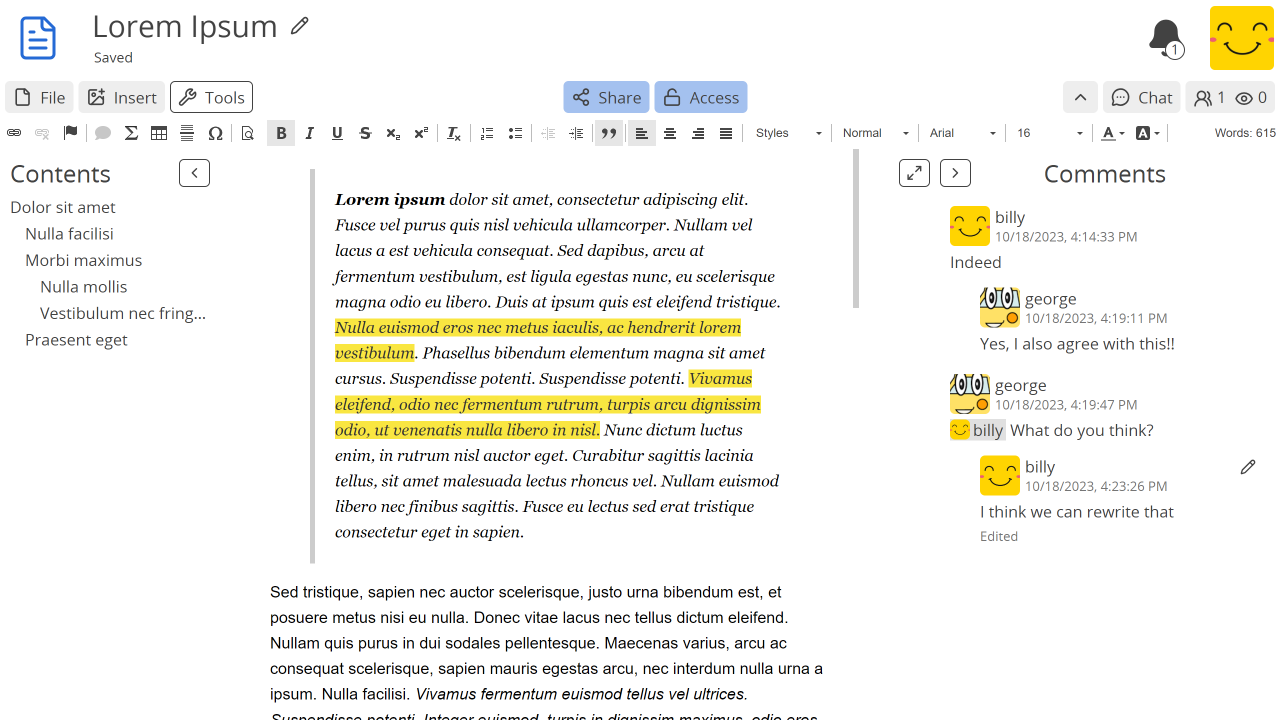
Toolbar#
Tools: Show/hide the text editor toolbar.
Insert: Add an image to the document. The image can be chosen in the drive or uploaded. Logged in users
View settings#
The buttons at the top of the editor control the display of text editor elements.
: Show/hide the document outline.
: Show/hide the comments (a red icon when closed indicates that there are comments).
: Use the full width of the window for the text editor.
: Use reduced width "page mode" for the text editor.
To set defaults for these settings, for example to control which sections are visible when recipients visit a shared link to the document, use the Document Settings dialog:
File > Document Settings.
Editing#
Headings#
In order for headings to appear in the outline, they must be formatted as such. To format a heading, select the text or place the cursor on the heading line, then either:
Use the formatting menu in the toolbar (displays "normal" by default) to select the desired heading level.
Use the keyboard shortcut: Ctrl + Alt + the number of the desired heading level.
Paragraphs#
By default the Enter key creates a new paragraph, adding a line of spacing with the previous paragraph. To add a line-break without adding a new paragraph, use Shift + Enter.
Note
Take a look at the CKEditor documentation for a complete list of the available shortcuts.
Import/Export#
.html, .md..html, .doc, .md.To print or export a PDF:
File > Print.
Select your printer or “print to file”.
Comments#
To comment on a part of the text:
Select the text to comment.
button, either to the right of the text or in the text editor toolbar.
Write the comment.
Submit.
Clickon a comment to select it, then:Reply: Adds a comment as a response.
Resolve: Deletes the comment after confirmation.
To notify contacts in a comment, mention them with
@and their display name.You receive notifications when:
Someone replies to one of your comments.
Someone mentions you in a comment.